![HiLink-complete-logo-color.png]](https://info.hilink.co/hs-fs/hubfs/HiLink-complete-logo-color.png?height=24&name=HiLink-complete-logo-color.png)
Potential scenarios where this guide may be needed:
- Emergency Classroom Access: Ensures continuity of learning by enabling manual link generation when automated systems fail.
- Educator Assistance: Allows administrators to quickly generate and distribute classroom links to instructors.
- User Support & Troubleshooting: Helps administrators assist users who are unable to access their classrooms due to technical issues.
Step 1: Create a New Class
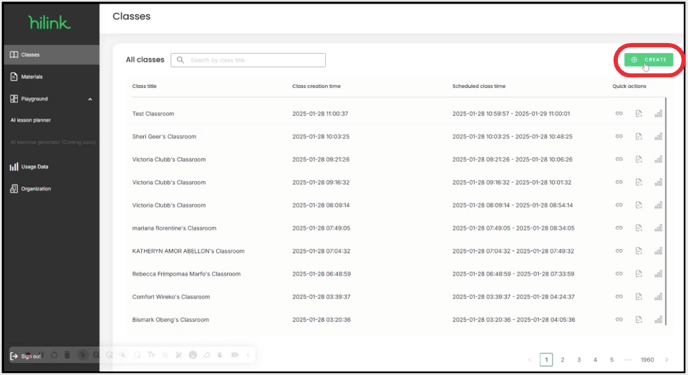
- Once you have logged into the HiLink Dashboard, use the “Create” button to generate a new classroom.
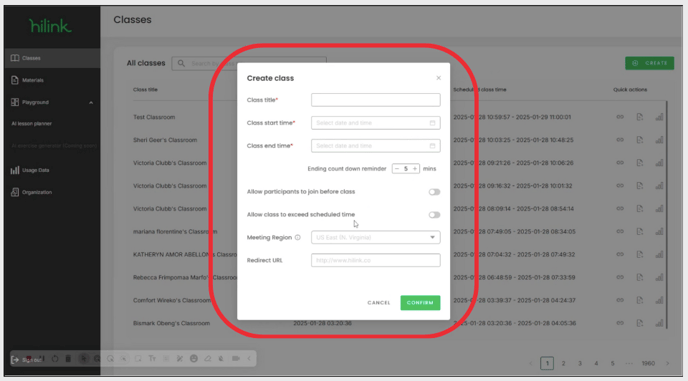
- Input the details of the class. Once all the details are included, click “Confirm” to create the new class.
Step 2: Retrieve & Send Link(s) to Class
- Locate the class you just created in the list.
- Under "Quick Actions", click the Link icon.

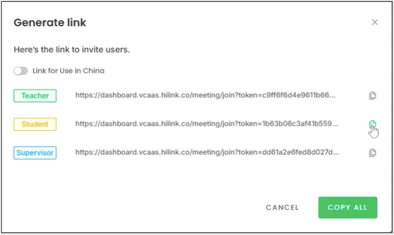
- Choose the appropriate link based on the role:
 : Provide this to instructors.
 : Provide this to participants.
- Copy the link by clicking the Copy icon on the right.
- Send the link to your users. Instruct them to open a web browser and paste the link to access the classroom.
Additional Tips
- Verify users are using a supported browser (Google Chrome or Safari).
- If users continue to experience issues, advise them to clear their browser cache and cookies.
- If the issue persists after following the troubleshooting steps, please contact the HiLink support team for by submitting a Help Ticket. Please allow for 24-48 business hours for a response.
- Provide the following details to help us resolve the issue quickly:
- The device and browser being used
- A description of the issue
- Any error messages encountered
- Provide the following details to help us resolve the issue quickly: